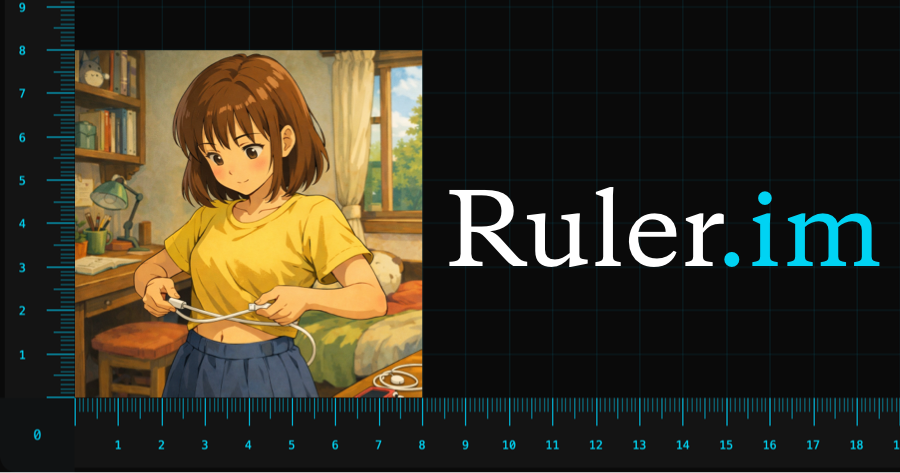
Online Screen ruler - Try Square

The Online Screen Ruler uses a calibrated try square layout with an XY guide, so the Screen Ruler can help you check length, width, height, and alignment directly on the display. Upload an image, place an object against the corner, or open fullscreen to turn the Screen Ruler into a larger real-size measuring board. This Screen Ruler supports centimeters and inches after calibration, making the Screen Ruler useful for product photos, foot size checks, ring images, drawings, sketches, and layout references.

If you like our product, please share it with your friends, or add the link to your website/social media.

Screen Ruler Workflow

Use the Screen Ruler as an online try square

This Screen Ruler turns the browser into a calibrated L-square ruler with an XY guide, so you can check a straight edge, compare width and height, and mark a real object or image without reaching for a physical ruler.

Square checks on the screen

The Screen Ruler keeps the horizontal and vertical axes visible at the same time. Place a box, card, sketch, or uploaded image against the corner and use the Screen Ruler to read length, width, offset, and alignment from one view.

Image dimension notes

Upload a product photo, drawing, foot outline, ring image, or layout screenshot, then use the Screen Ruler to add direct measurement marks. The Screen Ruler helps turn visual comments into practical size notes.

Fullscreen measuring space

Open the Screen Ruler in fullscreen when the object needs more room. A fullscreen Screen Ruler reduces browser chrome, gives the try square more usable area, and makes the X and Y guides easier to place.

Calibrated real size

After credit card calibration, the Screen Ruler can show centimeters or inches in real size. Recalibrate the Screen Ruler when browser zoom, monitor, or device changes, because pixel density changes the result.

Screen Ruler FAQs

Recalibrate the Screen Ruler whenever you change browser zoom, switch monitors, rotate the device, or move from phone to desktop. A Screen Ruler depends on pixel density and browser scale, so calibration with a standard credit card keeps the try square, centimeter marks, and inch marks close to real size.

The Screen Ruler uses a right-angle corner with horizontal and vertical guides. After calibration, the Screen Ruler behaves like an online try square: place an object against the corner, compare the X and Y edges, and read width, height, offset, or alignment on the screen.

Use the Screen Ruler for small objects, product photos, cards, labels, craft parts, ring images, foot outlines, packaging, sketches, and interface screenshots. The Screen Ruler is useful when you need a quick real-size reference and a physical square ruler is not nearby.

To measure length, align the object with the horizontal edge of the Screen Ruler and read the value. To measure height, align the object with the vertical edge. For images, upload the image, restore it to the expected real size, then use the Screen Ruler guide lines to mark dimensions directly on the picture.

Yes. Place the ring or foot outline on the calibrated Screen Ruler, or upload a photo and mark the inner diameter, length, and width. The Screen Ruler helps communicate size online, but expensive purchases should still be confirmed with a professional sizing tool.

Fullscreen mode gives the Screen Ruler the largest possible work area by hiding browser controls. A fullscreen Screen Ruler is easier to use for longer objects, uploaded images, and try square checks because the X and Y guides have more room and the marks are less crowded.

Sitemap © 2026 Ruler.im - Online Ruler, Precise measurement

Other products:AI Rapper